How to Activate Hulu on Smart TV (2 Methods)

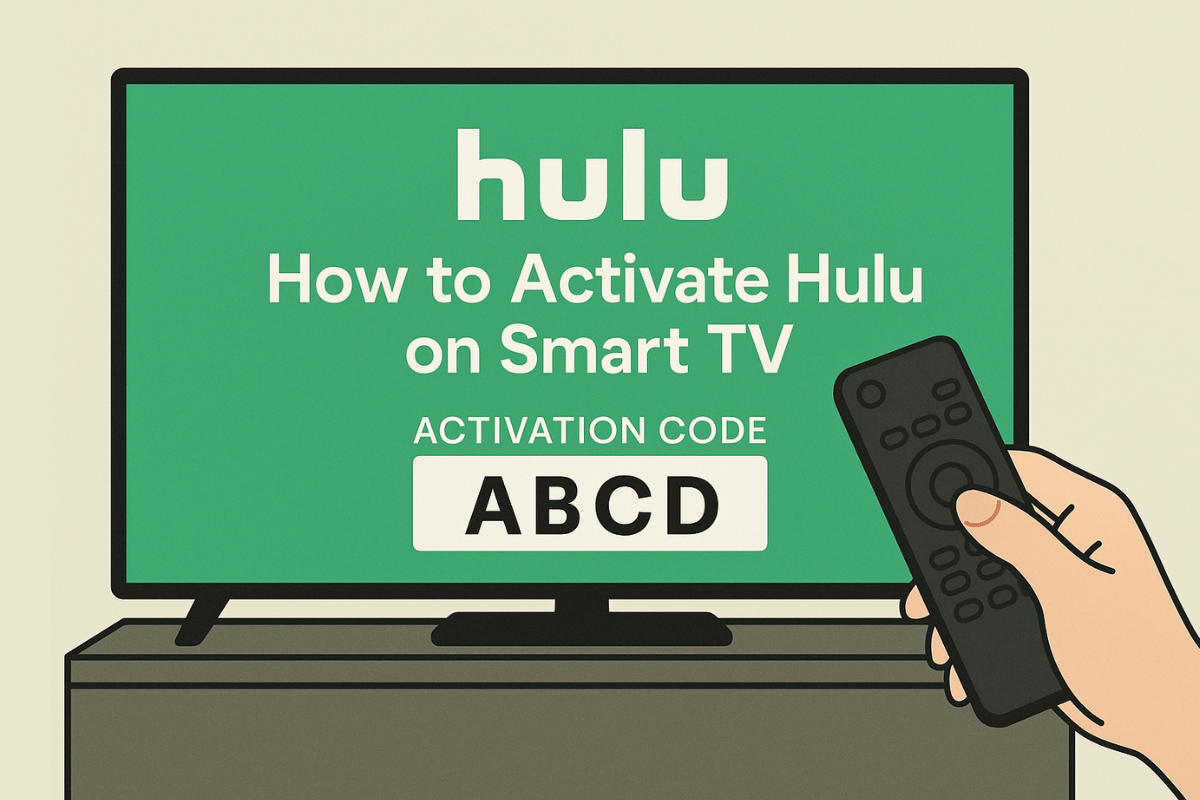
If you’ve just installed Hulu on your Smart TV, you’ll need to activate it before you can start watching. The process is straightforward, and you can do it in two main ways — either sign in directly on the TV or use an activation code.
In this guide, we’ll walk you through both methods step-by-step so you can start streaming Hulu in no time.
2 Easy Methods for Activating Hulu on Smart TV
Method 1: Sign in Directly on the TV
If you prefer to enter your login details right on your Smart TV, follow these steps:
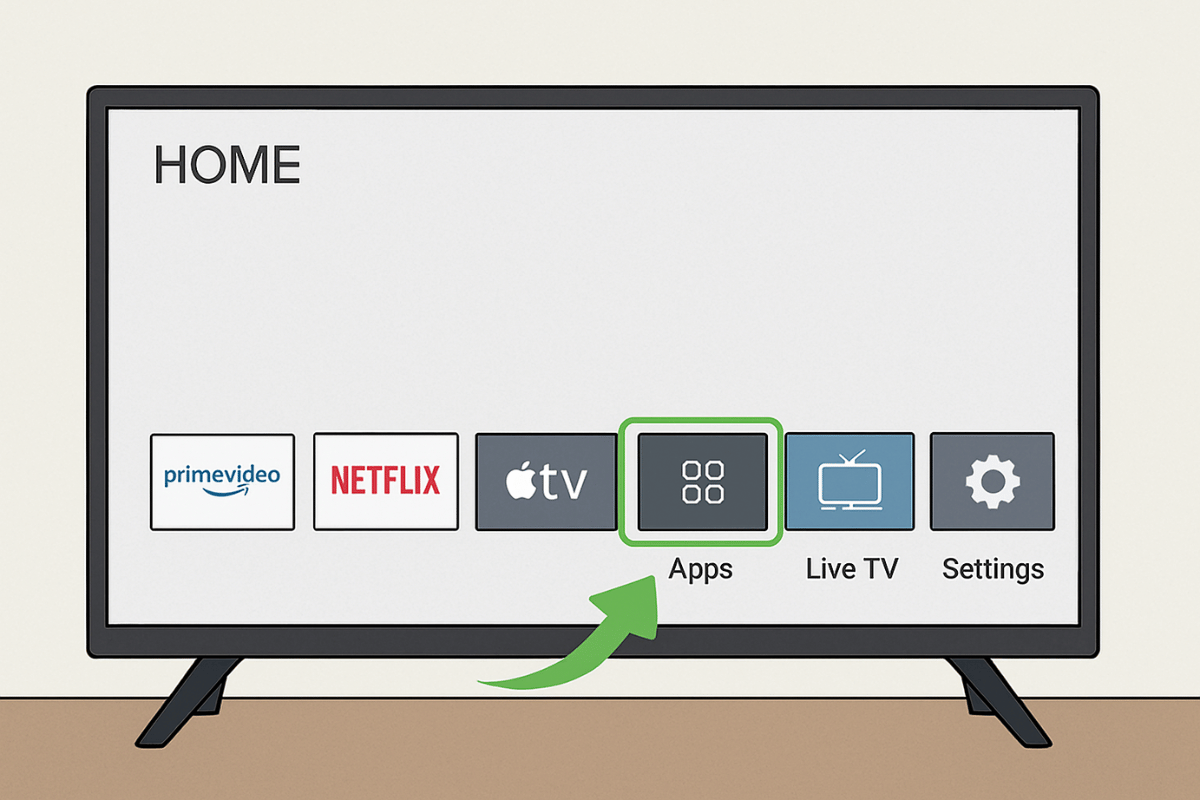
Step 1: Open the app store on your TV.
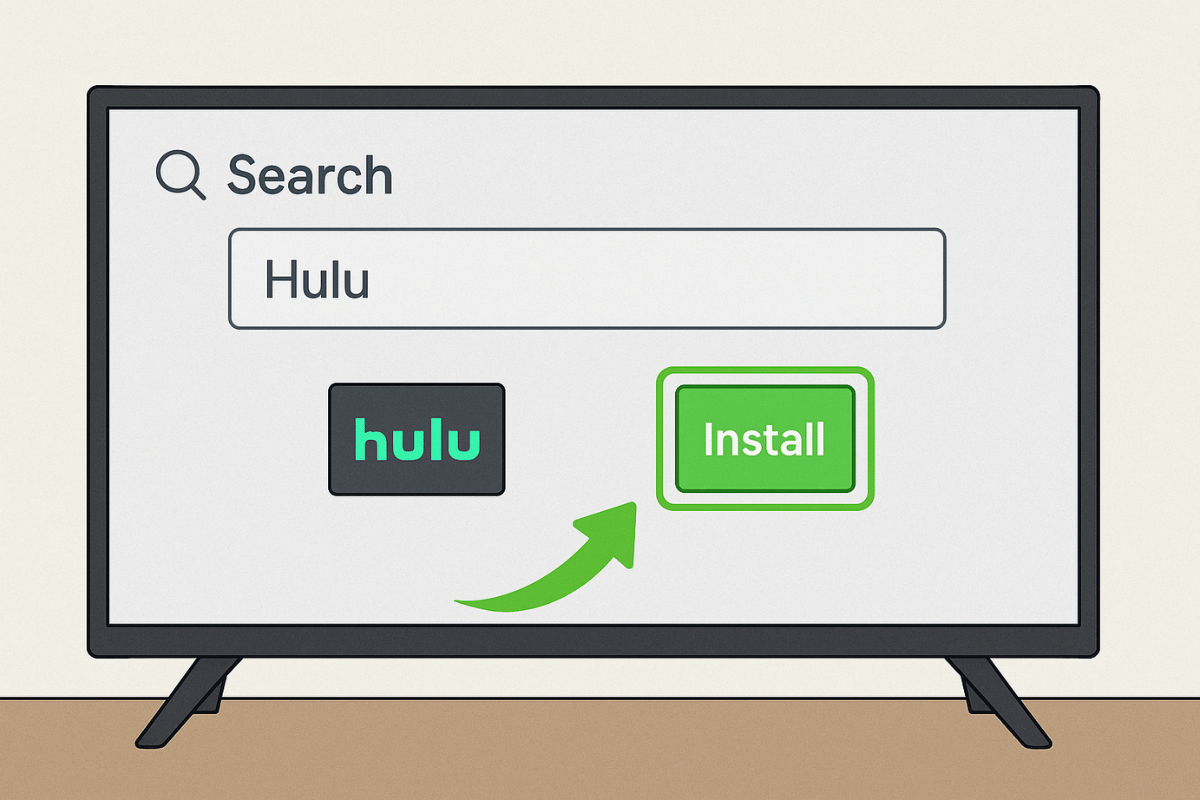
Step 2: Install Hulu if you haven’t already, or open it if it’s pre-installed.
Step 3: Choose “Log In” and then select “Log in on this device.”
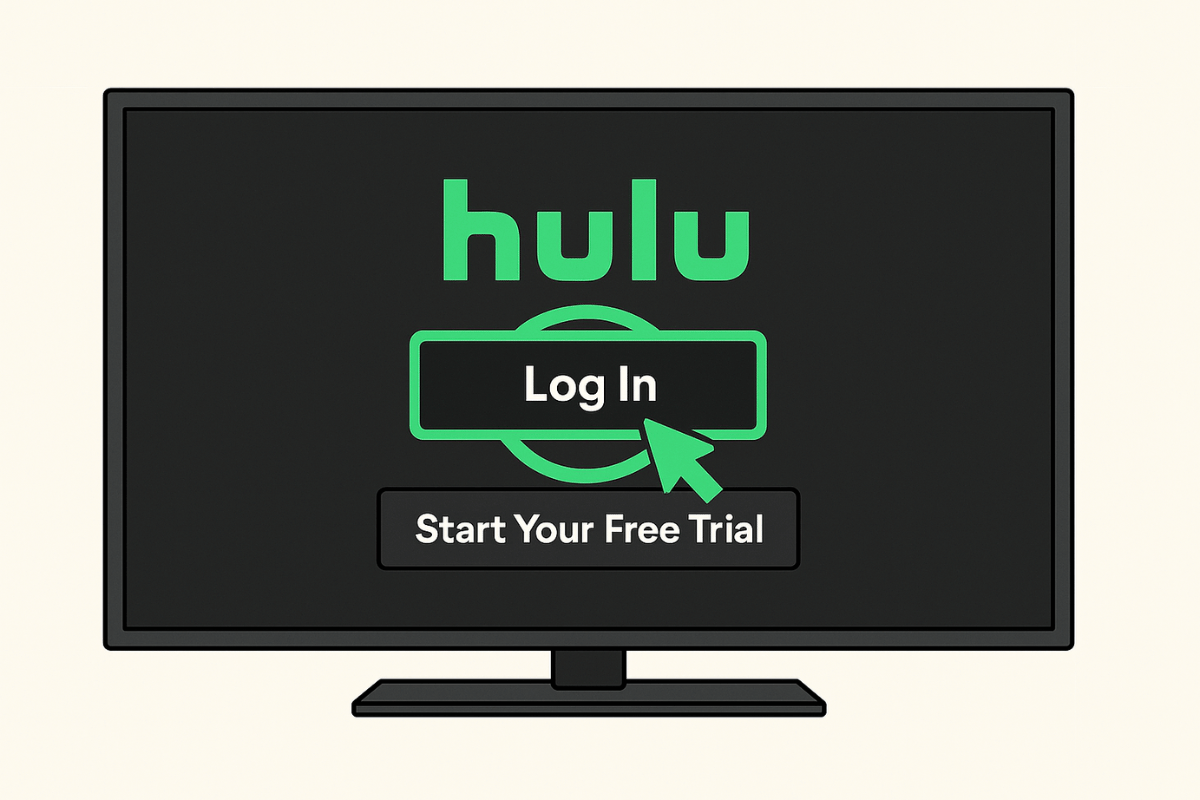
Step 4: Enter your Hulu email and password using your TV remote or on-screen keyboard.
Step 5: Select your profile once logged in—and you’re ready to stream.
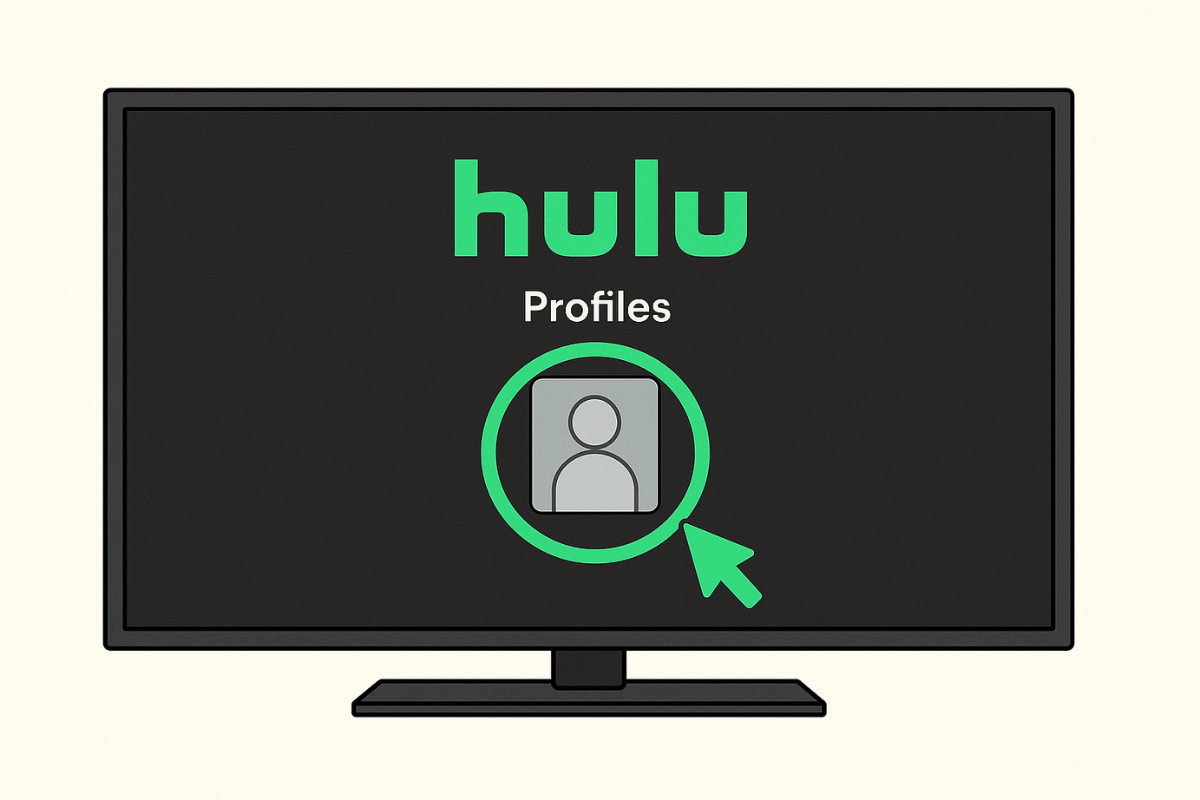
Method 2: Use the Activation Code
If you’d rather avoid typing on your TV, Hulu also lets you log in using a one-time activation code.
Step 1: Open Hulu on your Smart TV.
Step 2: Select “Log In” and then choose “Activate on a computer” (or “Activation Code” depending on your TV).
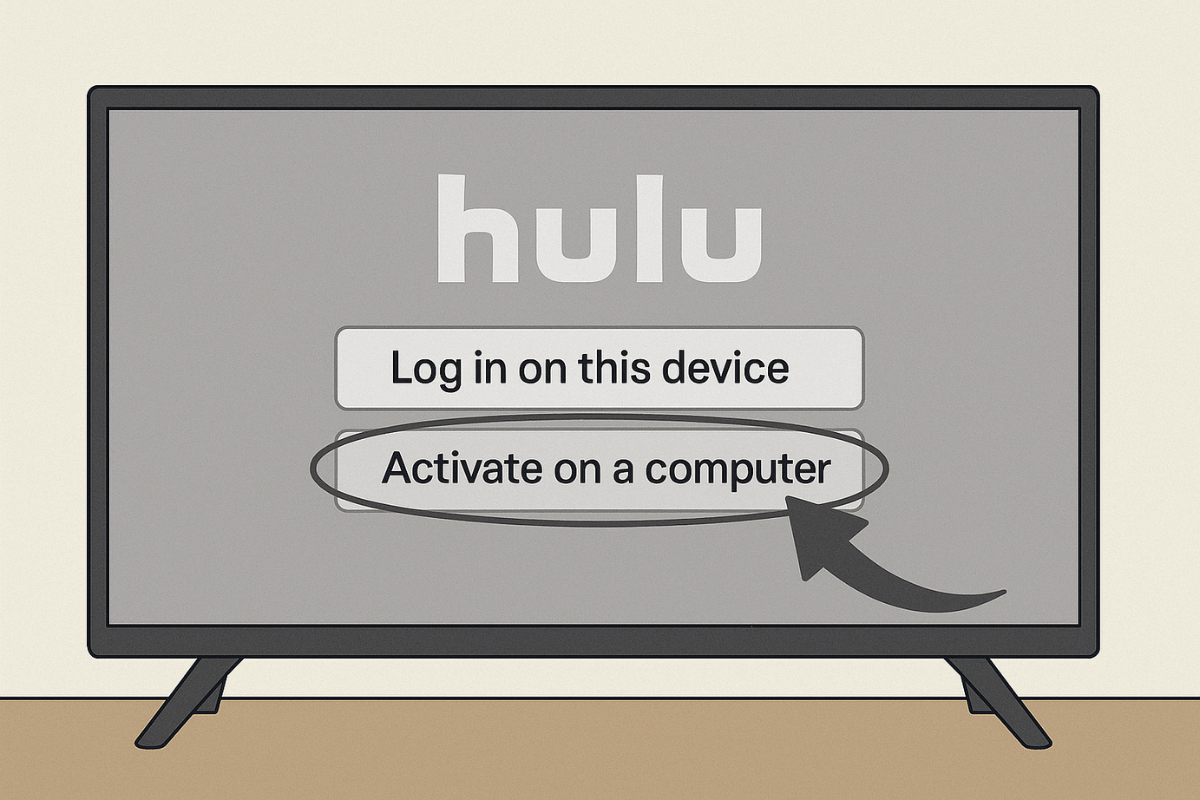
Step 3: On your phone or computer, go to hulu.com/activate.
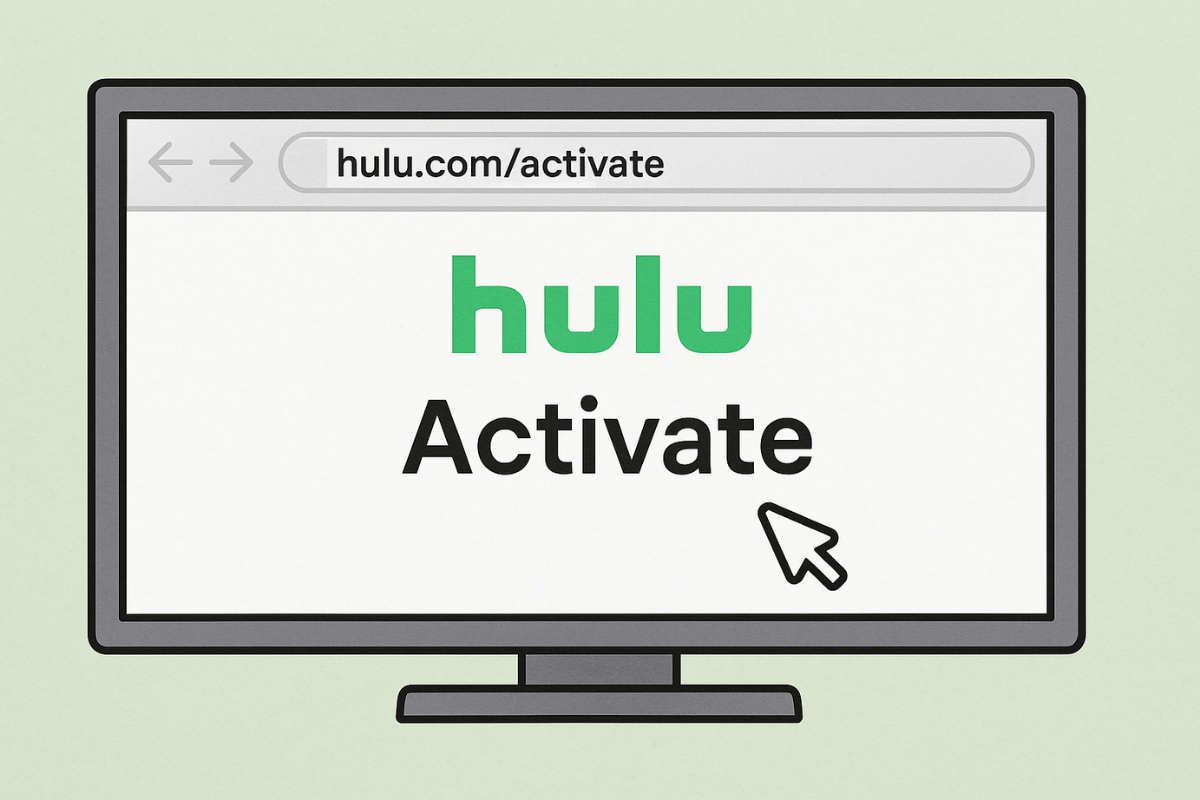
Step 4: Sign in to your Hulu account if prompted, then enter the activation code shown on your TV.
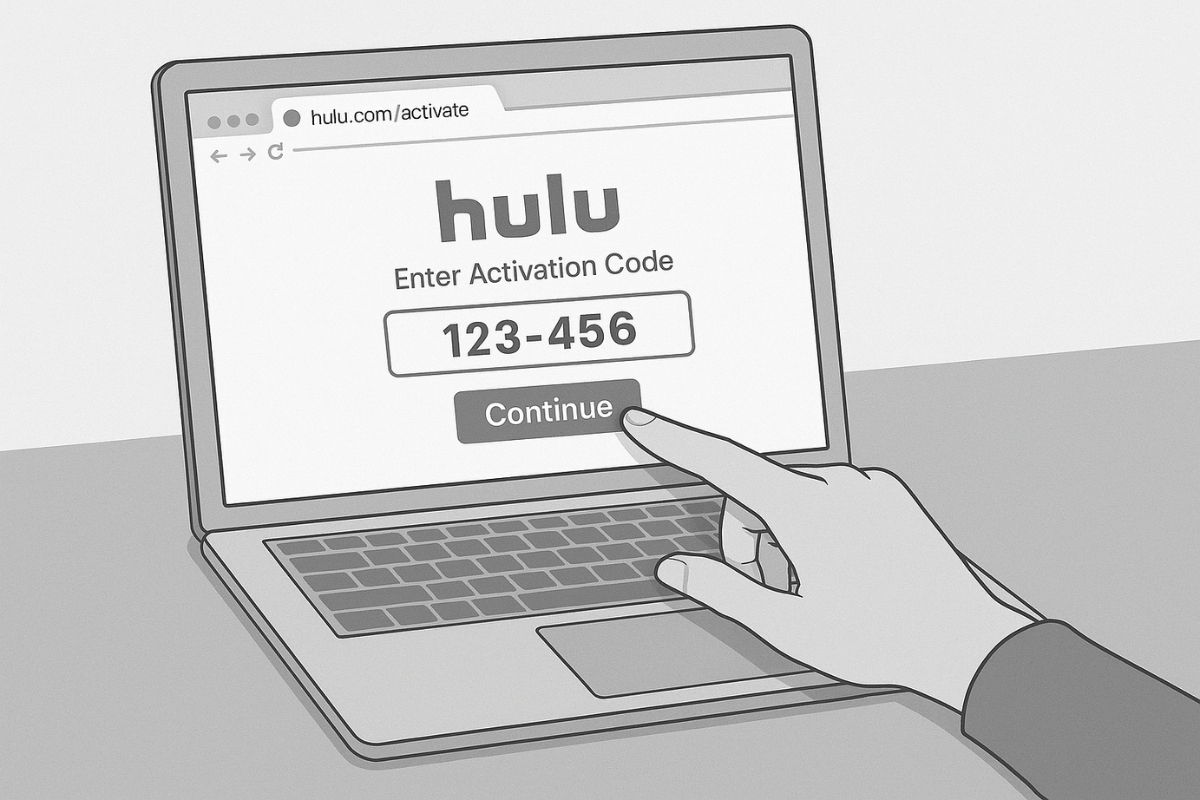
Step 5: Wait a few seconds for your TV screen to refresh. Once it logs in automatically, select your profile to start streaming.
This method is quicker for most people since you can type on your phone or computer instead of using a remote.
If you follow these steps, activating Hulu on your Smart TV should be quick and hassle-free. Whether you choose to log in directly on your TV or use an activation code, you’ll be ready to watch your favorite shows and movies in minutes.
FAQs
The code may have expired—Hulu codes typically expire after a few minutes. Try generating a new code by restarting the Hulu app on your TV and repeating the activation process.
Yes, you can log in to Hulu on multiple Smart TVs as long as you are within Hulu’s device limit. Your subscription plan determines how many devices can stream simultaneously.
Yes. You must have an active Hulu subscription to sign in on a Smart TV. If you don’t have one, you can sign up via the Hulu website or app before activating.
Go to your Hulu profile menu, select Log Out, and confirm. This will disconnect your account from that specific TV.
Check your internet connection first. If it’s stable, try restarting the Hulu app or your TV. You can also uninstall and reinstall the app to fix loading issues.