Vizio Sound Bar Remote Not Syncing? Quick Fixes That Actually Work

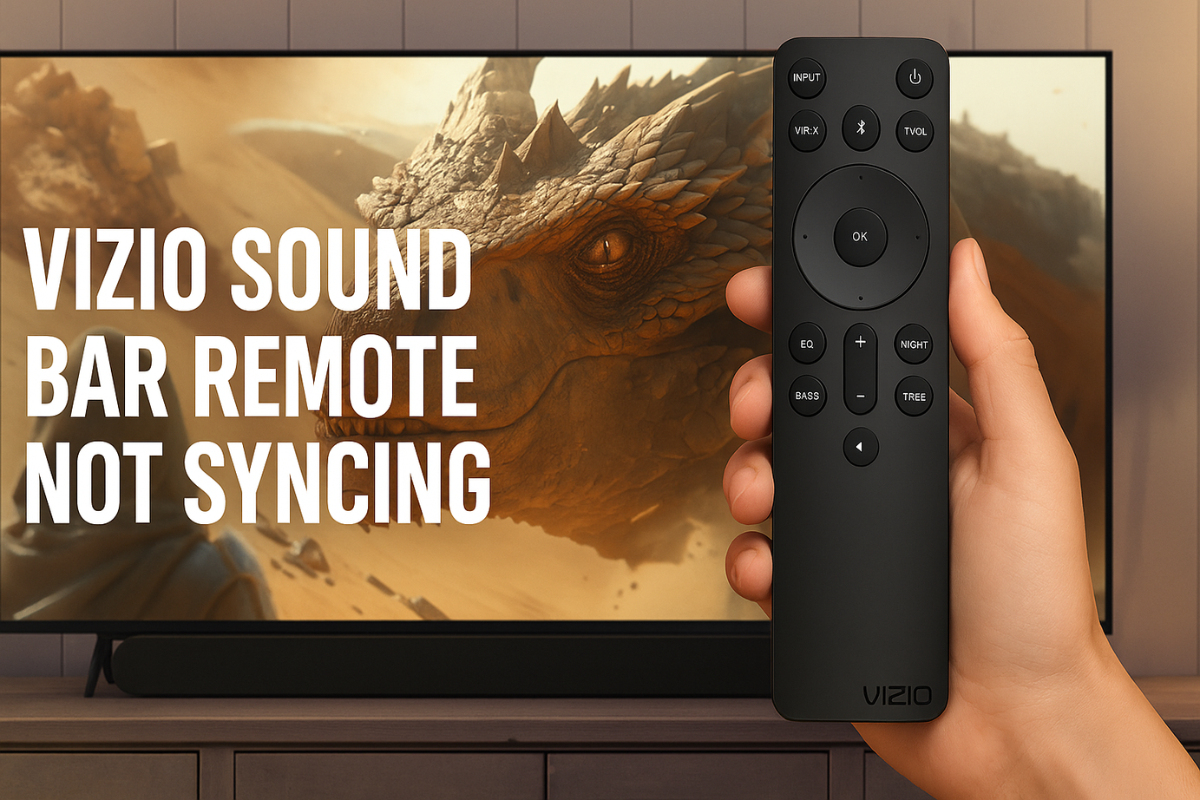
Can’t get your Vizio sound bar remote to sync? You’re definitely not the only one. Whether it suddenly stopped responding or never worked right in the first place, remote issues can be super frustrating—especially when all you want to do is adjust the volume.
The good news? You don’t need to be a tech wizard to fix it. In this guide, we’ll walk you through the most common causes of Vizio sound bar remote not syncing problems and show you how to fix them step by step. Let’s get started.
What Causes Vizio Sound Bar Remote Syncing Issues?
Before jumping into the fixes, here are the top reasons your remote might not be working:
- Weak or dead batteries
- Signal interference or blocked IR sensors
- Outdated firmware or software glitches
- Wrong input settings or HDMI-CEC conflicts
- Hardware damage (like a bad remote or receiver)
9 Solutions to Fix Vizio Sound Bar Remote Not Working Issue
Let’s fix it, one step at a time.
1. Power Cycle the Remote and Sound Bar
This resets both the remote and sound bar to clear temporary glitches and re-establish a clean connection.
Steps:
- Remove the batteries from your remote.
- Press all buttons twice to drain any leftover power.
- Unplug the sound bar.
- Hold the power button on the sound bar for 30 seconds.
- Plug it back in, insert fresh batteries, and test.
2. Replace the Remote Batteries
Fresh batteries give the remote enough power to communicate properly with the sound bar.
Steps:
- Remove the old batteries.
- Insert new AAA alkaline or lithium batteries.
- Check that the polarity (+/-) is correct.
- Close the battery compartment.
- Test the remote with the sound bar.
3. Ensure a Clear Line of Sight
IR remotes need a direct path to the sound bar’s sensor. Even small objects can block the signal.
Steps:
- Clear any objects between the remote and the sound bar.
- Stay within 15–30 feet.
- Avoid aiming at sharp angles.
- Eliminate sources of IR interference (e.g., sunlight or strong lighting).
4. Perform a Factory Reset on the Sound Bar
A factory reset wipes out any software glitches or misconfigured settings that might be blocking remote input.
Steps:
- Press and hold Bluetooth and Volume Down on the sound bar for 5 seconds.
- Wait for the lights to flash.
- Allow the sound bar to reboot.
- Test the remote after initialization.
5. Update the Sound Bar’s Firmware
Outdated firmware can affect how well the sound bar responds to remote commands.
Steps:
- Press and hold Volume Up + Down to check firmware.
- Visit Vizio’s support site and download the latest update for your model.
- Save it to a FAT32 USB drive.
- Insert it while the sound bar is off.
- Power on and wait for the update to complete.
6. Use the Vizio Mobile App
The Vizio Mobile app works through Wi-Fi or Bluetooth and avoids IR signal issues altogether.
Steps:
- Download the Vizio Mobile app from your app store.
- Turn on Bluetooth on your phone.
- Follow prompts to pair with your sound bar.
- If needed, press and hold Bluetooth on the sound bar to enter pairing mode.
7. Try a Universal Remote
Universal remotes are a reliable backup when your original remote fails or goes missing.
Steps:
- Get a compatible universal remote.
- Look up Vizio sound bar codes in the remote’s manual.
- Follow programming instructions to pair.
- Test power and volume buttons.
- Try alternate codes if needed.
8. Check for IR Code Conflicts
Nearby devices might be interfering with your remote’s signals, causing odd behavior or no response.
Steps:
- See if using one remote affects another device.
- Move devices apart to reduce overlap.
- Use IR blockers or extensions.
- Consider switching to the Vizio Mobile app or HDMI-CEC controls.
9. Replace the Remote
If nothing else works, your remote may be faulty and should be replaced with a compatible model.
- Check your sound bar’s exact model number.
- Buy a genuine or compatible replacement remote.
- Insert fresh batteries.
- No pairing is usually needed—just start using it
Final Thoughts
If your Vizio sound bar remote is not syncing, don’t panic. It’s often just a minor issue like weak batteries, blocked sensors, or a simple software hiccup. Try the solutions in this guide—starting with the easiest—and you’ll likely have things working again in no time.
And if your remote still refuses to cooperate, the Vizio Mobile app or a universal remote can save the day without much hassle.
FAQs:
Try power cycling the remote and sound bar. Also check battery polarity.
Yes, the Vizio Mobile app lets you control your sound bar via Wi-Fi or Bluetooth.
Point it at your phone’s camera and press a button—look for a flashing light on-screen.
Yes, most universal remotes can be programmed to work with Vizio models.
Not usually. Most model-specific remotes work out of the box after inserting batteries.
Also read:
1. Best YouTube Vanced Alternatives for Android That REALLY Work
2. Tricks to Use Telegram Without Using Phone Number