How to download sources from NotebookLM

There’s no direct download button to save your NotebookLM sources to your device. In fact, you can’t even directly export your NotebookLM notes. However, there’s an alternative way around to download your sources from Notebook, which I’m going to reveal in this post in a step-by-step manner.
Here’s how to download sources from NotebookLM
We’ll use Google Takeout to export NotebookLM data, and that will give us all the sources.
Here are the steps you need to follow:
Step 1: Open Google Takeout (https://takeout.google.com/).
Step 2: Log in with your Google account (the same account you use for NotebookLM).
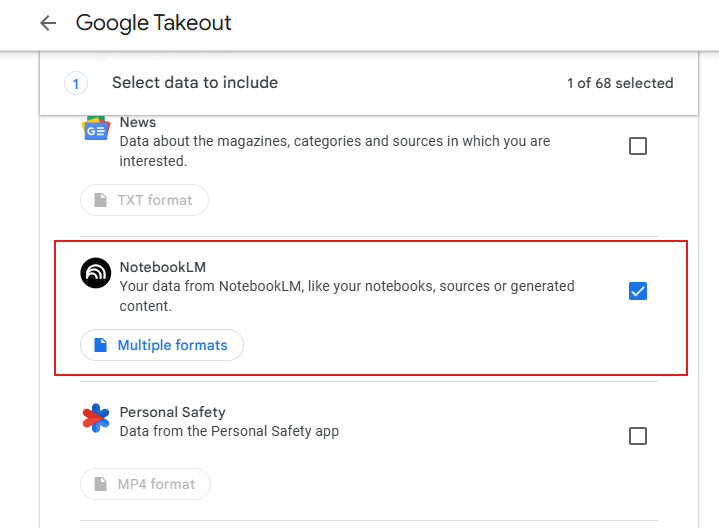
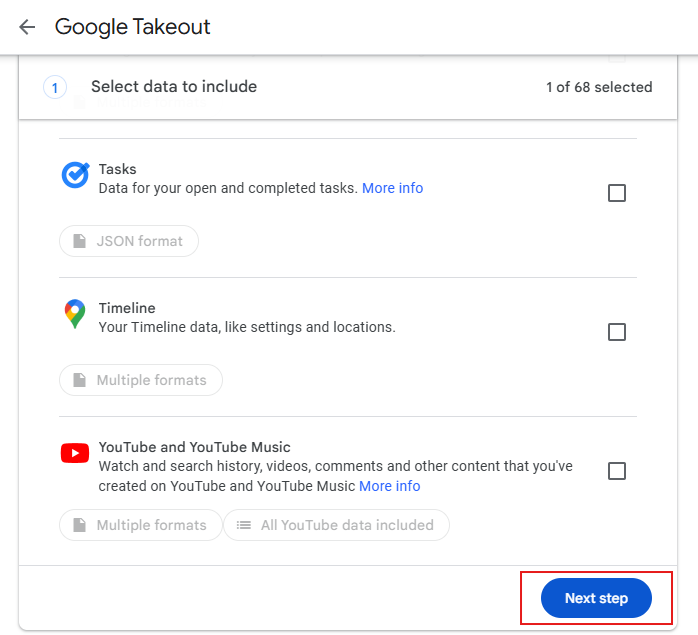
Step 3: Deselect all options except NotebookLM and click Next step.
Step 4: Choose how you want to receive the export file and tap Create export.
Step 5: Download the export file.
Step 6: Open the exported takeout file and go to Takeout > NotebookLM > your notebook name > Sources.
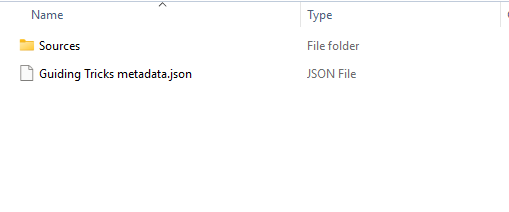
You now have access to NotebookLM sources on your device. This is the only way to download sources from NotebookLM. Hopefully, Google will add a download button directly on the NotebookLM in future releases.
Best use cases of NotebookLM
NotebookLM is a great tool for many purposes. Here are some of the best things you can do with it:
1. Chat with a PDF
With NotebookLM, you can upload that PDFs and ask it for a summary, key takeaways, or even a bullet-point list of major arguments. It’s like having a research assistant that doesn’t sleep—and doesn’t charge by the hour.
2. Study research papers on your behalf
If you’re preparing for an exam, working on a thesis, or just trying to understand a dense report, NotebookLM can generate questions (and answers!) based on your uploaded content. It’s like quiz mode but smarter. You can also tweak the questions or ask follow-ups to go deeper into the topic.
3. Brainstorm ideas
Writers, bloggers, and marketers—this one’s for you. Once you upload background material (like articles, product briefs, or previous campaigns), NotebookLM can suggest blog titles, outline formats, social media hooks, or even write sample intros. It feels like co-writing with someone who’s already read everything you’ve ever written.
4. Create a personal knowledge base
Tired of digging through your Drive to find old research, notes, or random thoughts? Use NotebookLM to create a smart knowledge hub. Upload your docs, give it some context, and ask questions across your entire library. It remembers the material you feed it and helps connect the dots when your brain just… can’t.
Also read:
1. Best YouTube Vanced alternatives that really work
2. How to add someone to WhatsApp group without being admin