Telegram screen share not working? Fix it fast!

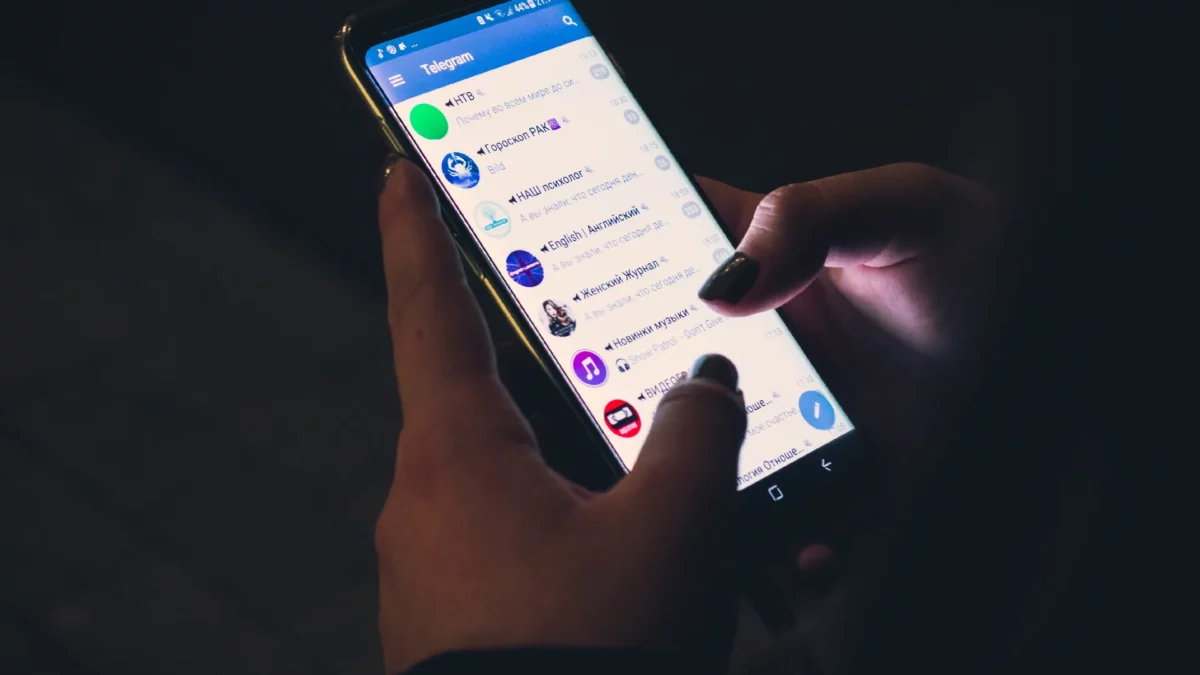
Frustrating isn’t it? You’re in the middle of an important meeting or presentation, and Telegram’s screen sharing feature just won’t work. Don’t worry, you’re not alone! Many users have experienced this issue, and we’re here to help you resolve it. In this article, we’ll walk you through step-by-step solutions to fix Telegram screen sharing issues and get you back to sharing your screen in no time.
Telegram screen share not working? Here’s how to fix it
Basic Troubleshooting Steps
Before diving into more advanced solutions, try these basic troubleshooting steps:
#1. Check your internet connection: Ensure you have a stable and fast internet connection. A slow or unreliable connection can cause screen sharing issues.
#2. Update Telegram: Make sure you’re running the latest version of Telegram. Update the app to ensure you have the latest features and bug fixes.
#3. Restart the app: Sometimes, simply restarting the app can resolve issues. Close Telegram and reopen it to try screen sharing again.
#4. Check screen sharing permissions: Ensure that Telegram has the necessary permissions to access your screen. Go to your device’s Settings > Apps > Telegram > Permissions, and ensure that “Screen recording” or “Screen sharing” is enabled.
Advanced Troubleshooting Steps
If the basic steps don’t resolve the issue, try these advanced troubleshooting steps:
#1. Check for conflicts with other apps: Other apps may be interfering with Telegram’s screen sharing feature. Try closing other apps or background processes that may be causing conflicts.
#2. Disable hardware acceleration: Hardware acceleration can sometimes cause issues with screen sharing. Try disabling hardware acceleration in Telegram’s settings: Settings > Advanced > Disable hardware acceleration.
#3. Check your device’s screen recording settings: Ensure that your device’s screen recording settings are configured correctly. Go to your device’s Settings > Screen recording, and ensure that screen recording is enabled.
#4. Clear Telegram’s cache and data: Clearing Telegram’s cache and data can sometimes resolve issues. Go to your device’s Settings > Apps > Telegram > Storage > Clear Cache and Clear Data.
Additional Solutions
If none of the above steps resolve the issue, try these additional solutions:
#1. Use an alternative screen sharing method: If you’re experiencing issues with Telegram’s built-in screen sharing feature, try using an alternative method like sharing your screen through a third-party app or using a desktop client.
#2. Check for issues with your device’s operating system: Sometimes, issues with your device’s operating system can cause problems with screen sharing. Check for updates to your operating system and ensure that it’s running smoothly.
#3. Reinstall Telegram: If all else fails, try reinstalling Telegram. This will reset the app to its default settings and may resolve any issues caused by corrupted data.
Common Issues and Solutions
Here are some common issues users face with Telegram screen sharing, along with their solutions:
- Black screen or frozen screen: This issue is often caused by hardware acceleration or conflicts with other apps. Try disabling hardware acceleration or closing other apps to resolve the issue.
- Audio not working: Ensure that your device’s audio settings are configured correctly. Check that the volume is turned up and that the audio output is set to the correct device.
- Screen sharing not working on mobile data: Some users may experience issues with screen sharing when using mobile data. Try switching to a Wi-Fi connection to resolve the issue.
Tips for Smooth Screen Sharing
To ensure smooth screen sharing on Telegram, follow these tips:
- Use a stable internet connection: A fast and stable internet connection is essential for smooth screen sharing.
- Close unnecessary apps: Closing unnecessary apps can help free up system resources and ensure smooth screen sharing.
- Use the latest version of Telegram: Ensure you’re running the latest version of Telegram to take advantage of the latest features and bug fixes.
Conclusion
Don’t let screen sharing issues hold you back! With these step-by-step solutions, you should be able to resolve the problem and get back to seamless screen sharing on Telegram. Remember to always keep your app and operating system up-to-date, and don’t hesitate to reach out to Telegram’s support team if you need further assistance.
Also read:
1. How to Access Banned Telegram Channels (Easily)
2. How to download Private Telegram videos